How to Secure Work Accounts
Protect your career by locking down work accounts: use 16+ character passphrases, password managers, phishing‑resistant MFA, and updated device encryption.

Your work accounts hold sensitive data that can impact your career if compromised. With over 3,000 data breaches in 2024 and the average breach costing $4.88 million, securing these accounts is more critical than ever.
Here’s how to protect them:
- Passwords: Use 15+ character passphrases and never reuse them. A password manager simplifies this.
- Multifactor Authentication (MFA): Enable MFA on all accounts, prioritizing hardware keys or authenticator apps over SMS codes.
- Device Security: Update software regularly, enable encryption, and avoid public Wi-Fi without a VPN.
- Session Management: Check active sessions often and log out of unused ones.
- Job Transitions: Revoke access to old work systems and secure personal accounts during job changes.
Modern threats like phishing, password attacks, and unsecured devices demand strong defenses. Start today by securing your passwords, enabling MFA, and keeping your devices updated.
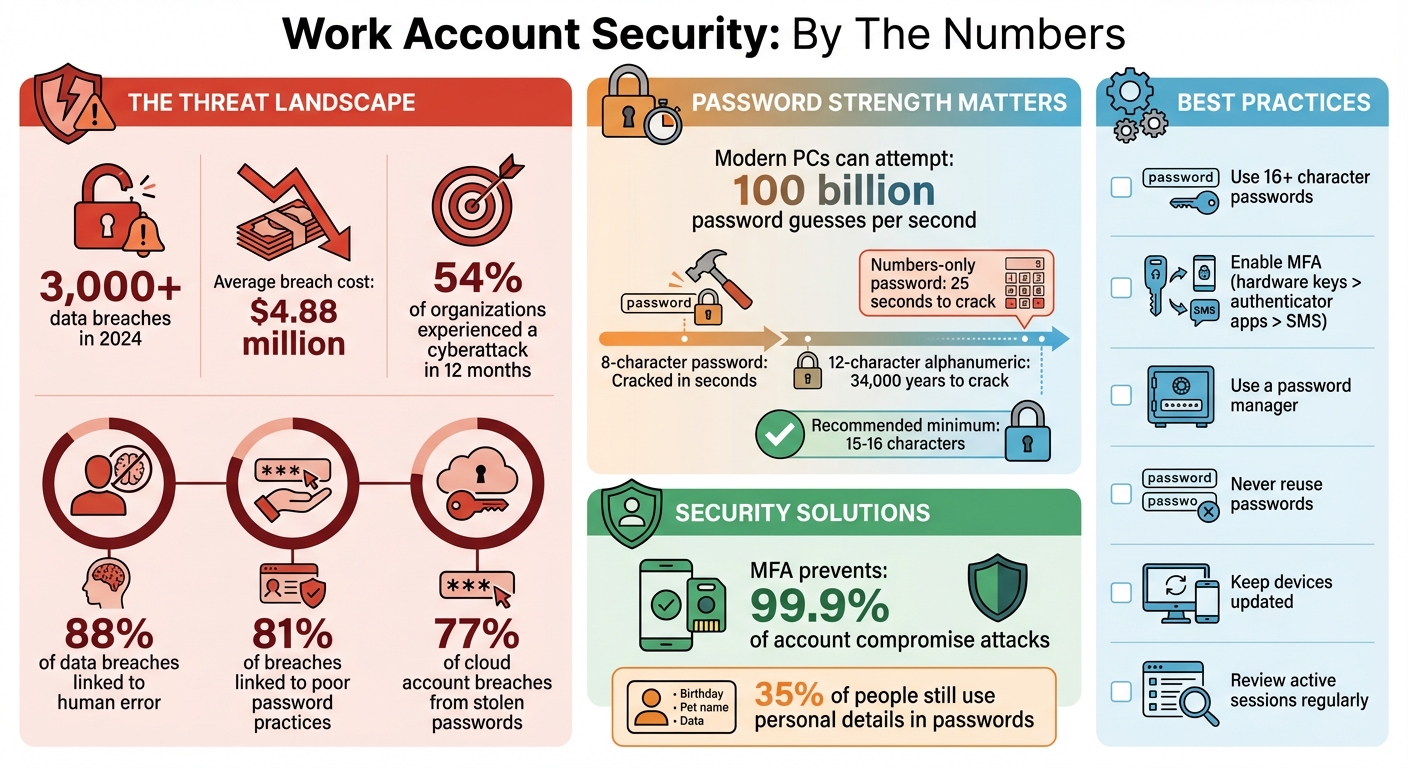
Work Account Security Statistics and Best Practices 2024
The Ultimate Guide to Password Managers in 2025
Common Threats to Work Accounts
Protecting your work accounts starts with understanding the threats they face. Cybercriminals often exploit both technical weaknesses and human mistakes to infiltrate professional systems. In 2024, 54% of organizations reported experiencing a cyberattack in just a 12-month span, with the average data breach costing $4.88 million. The majority of successful breaches stem from three main attack methods: phishing, password attacks, and unsecured devices. Knowing how these threats operate is key to building strong defenses, as we’ll explore further.
Phishing and Social Engineering
Phishing attacks rely on deception. Whether through emails, messages, or phone calls, attackers aim to trick you into revealing your login details or clicking harmful links. These scams prey on human emotions like fear, urgency, or trust to bypass technical safeguards. Remote workers using personal devices are especially vulnerable. Often, attackers impersonate company executives, IT support, or other trusted figures to appear legitimate.
88% of data breaches are linked to human error. Ryan Galluzzo, Lead of NIST's Digital Identity Program, emphasizes how attackers target the easiest vulnerabilities:
"The worst password I can think of is 'password' or '12345.' Those are at the top of an attacker's list for potential attacks."
Be alert for red flags such as generic greetings, threatening language, or mismatched URLs where the link text doesn’t match the actual destination. If you get an unexpected call claiming to be from "tech support", hang up and contact your official IT department using a verified number. Besides phishing, attackers also use brute-force and credential-based attacks to compromise accounts.
Password Attacks
Weak passwords are a goldmine for cybercriminals. They use methods like brute force, password spraying, and credential stuffing to crack them. Thanks to modern computing, these attacks are alarmingly efficient - a current PC can attempt 100 billion password guesses per second. An eight-character password can often be cracked in mere seconds, as it only takes about 200 billion guesses to try every combination. Reusing passwords makes the situation worse, with 81% of breaches linked to poor password practices.
Warning signs of a password attack include repeated login failures or sudden account lockouts. Attackers also exploit default credentials, which are widely known and easily accessible. While password issues are a major concern, they’re not the only vulnerability - unsecured devices can also expose sensitive data.
Unsecured Devices and Networks
Personal devices, public Wi-Fi, and outdated systems are prime targets for cybercriminals. The Federal Trade Commission highlights the risks:
"If malware gets onto any device connected to your home network, it can spread to other devices connected to the same network."
Once malware infects one device, it can quickly spread across your entire network. Keeping software up to date is essential, as updates often include critical security patches.
Public Wi-Fi adds another layer of danger, as attackers can intercept data sent over unprotected networks. Even at home, your router is a critical line of defense. If it’s compromised, every connected device becomes vulnerable. Additionally, storing sensitive credentials, like SSH private keys, directly on your device’s disk can make them accessible to attackers who gain remote access to your system.
How to Create and Manage Strong Passwords
Strong passwords are your first line of defense against the types of attacks we’ve discussed. The key to a secure password? Length. Every extra character significantly increases its strength. According to NIST, passwords should be at least 15 characters, while CISA recommends 16 characters for work accounts. To put this into perspective, a 12-character alphanumeric password might take about 34,000 years to crack, but a password made up of only numbers could be compromised in just 25 seconds. This highlights the importance of creating robust, complex passwords for all your professional accounts.
Best Practices for Strong Passwords
Forget the outdated advice about mixing symbols and numbers - hackers have evolved. Instead of guessing passwords on login screens, they often steal encrypted databases and use software to test billions of combinations offline. This is why passphrases outperform traditional passwords. A passphrase made up of five to seven random words (like "cassette-lava-baby-mountain-bicycle") creates a 15+ character password that’s both secure and easy to remember.
Avoid using personal information. Details like your birthday, pet’s name, or favorite sports team are easy for attackers to find online. Even for security questions, treat them as if they’re extra passwords. Create random, unrelated answers and store them securely in your password manager. For example, if a site asks for your mother’s maiden name, you could respond with something like "purple-elephant-7392."
Why You Need a Password Manager
Let’s be honest - memorizing unique 15-character passphrases for every account is impossible. That’s where password managers come in. These tools generate, store, and sync complex passwords across all your devices. You only need to remember one master password. Plus, they help protect against phishing by autofilling credentials only on legitimate websites, reducing the risk of entering your details on fake login pages.
When choosing a password manager, look for one with zero-knowledge security, meaning the provider cannot access your stored data. Use a master passphrase of at least six random words and enable multifactor authentication for added security. Many password managers also include a security dashboard to help you review and improve your saved passwords, flagging any that are weak, outdated, or reused. Popular options include LastPass, which has earned 4.5/5 stars from over 79,300 reviews, and Bitwarden, a trusted open-source alternative. With a reliable password manager and secure passphrases, you can avoid the risky habit of reusing passwords.
Never Reuse Passwords
Reusing passwords is a major security risk. If one account is breached, attackers can use that same password to access your other accounts through credential stuffing, a common cause of account takeovers. For example, your LinkedIn password should be entirely different from your work email password, which should also differ from any job search platform credentials.
To check if your credentials have been exposed in a data breach, use tools like "Have I Been Pwned?" If you discover any matches, immediately update those passwords on every site where they were used. Moving forward, let your password manager handle the heavy lifting by generating unique, 16-character passwords for each new account. This not only saves you from the hassle of memorization but also greatly improves your overall security.
How to Enable Multifactor Authentication (MFA)
Even the strongest, most unique passwords can fail if they’re stolen. That’s where multifactor authentication (MFA) steps in. MFA adds an extra layer of security by requiring a second form of verification before granting access. As the Federal Trade Commission highlights, a stolen password alone won’t be enough to break into your account. In fact, MFA can prevent up to 99.9% of account compromise attacks, making it one of the most effective defenses you can use. Let’s look at how MFA works and how you can set it up to protect your accounts.
How MFA Works
MFA combines two factors to verify your identity: something you know (your password) and something you have (like a device code, hardware key, or biometric scan). After entering your password, you’ll need to provide this second form of verification. This two-step process is especially important for work accounts. If credentials are compromised, attackers can gain access to sensitive data, make unauthorized changes to code, or even impersonate you professionally. Alarmingly, around 77% of cloud account breaches are linked to stolen passwords. To address this, platforms like GitHub now require MFA for all code contributors, a policy that took effect in March 2023.
Which MFA Methods to Use
Not all MFA options are equally secure. Here’s a breakdown of the most common methods:
- Hardware security keys (FIDO2/WebAuthn) or passkeys (like TouchID or FaceID): These offer top-tier protection. They’re resistant to phishing because they won’t work on fake websites, thanks to domain-specific verification.
- Authenticator apps: Apps like Google Authenticator or Microsoft Authenticator generate time-based codes directly on your device. They’re a much safer alternative to SMS codes.
- SMS and email codes: These are the least secure options. The National Institute of Standards and Technology (NIST) no longer recommends SMS-based MFA under its 800-63B guidelines due to risks like SIM swapping and message interception.
If your platform supports hardware keys, prioritize using them. If not, an authenticator app should be your next choice over SMS codes.
Setting Up MFA on Your Accounts
Start by securing your most important accounts - like your work email, device login, and password manager. The setup process is straightforward across most platforms. Head to your account’s security settings, find the option for "Two-Factor Authentication" or "Multifactor Authentication", and choose your preferred method. For authenticator apps, you’ll typically scan a QR code. If you’re using a hardware key, you’ll insert it when prompted.
Always register at least two MFA methods - for example, a hardware key and an authenticator app. This ensures you won’t get locked out if you lose access to your primary device. Don’t forget to download and securely store recovery codes as a backup. For example, platforms like scale.jobs allow you to enable MFA to protect professional documents and application histories, ensuring your sensitive information stays safe.
How to Secure Your Work Devices and Sessions
Your devices are the key to accessing your work accounts. If your laptop, phone, or tablet gets compromised, attackers could gain access to everything - from your email to sensitive company data. While strong passwords and multi-factor authentication (MFA) are essential, securing your devices and sessions is just as important.
Device Security Basics
Make sure your operating system, security software, and browsers are set to update automatically. These updates often include patches for vulnerabilities that hackers actively exploit.
Change default usernames and passwords on all devices and software immediately. Default credentials are often publicly available and easy for attackers to exploit. For your home Wi-Fi router, use WPA3 encryption and set a unique administrator password. Since your router acts as the gateway between your devices and the internet, a compromised router can spread malware to all connected devices.
Enable full-disk encryption to protect your data in case your laptop or phone is lost or stolen. Most modern operating systems include built-in encryption tools, like BitLocker for Windows or FileVault for macOS. Activate these tools in your system settings and pair them with a strong device passcode. According to NIST, a password with at least 15 characters is recommended. At a guessing rate of 100 billion attempts per second, it would take a computer over 500 years to crack such a password.
Safe Browsing and Network Practices
Securing your online connections is just as important as securing your hardware. Avoid accessing work accounts over public Wi-Fi unless you're using a VPN. Public networks are prime targets for attackers who can intercept your data. If you’re working remotely, always use a company-approved VPN to encrypt your connection. Also, don’t forget to update your home router's firmware regularly.
When browsing, check for "https://" and a lock icon in the address bar before entering any credentials. Enabling HTTPS-only mode in your browser settings ensures that your connection to websites is encrypted. As the Cybersecurity and Infrastructure Security Agency (CISA) advises:
"Strong, unique passwords are the first line of defense against criminals, but for many businesses they are overlooked."
The same principle applies to practicing safe browsing habits.
How to Manage Your Login Sessions
Managing your login sessions is a critical part of keeping your accounts secure. Regularly review your active login sessions across all work accounts. Most platforms, like Google, Microsoft, GitHub, and Slack, let you check where you're logged in. Look for a "Devices" or "Active Sessions" section in your account settings, and immediately log out of any sessions you don’t recognize or no longer need.
If you notice anything suspicious - like logins from unfamiliar locations or devices - change your password right away and review your recent account activity for unauthorized changes. Many organizations now use User and Entity Behavior Analytics (UEBA) to detect unusual login patterns. With over 3,000 data breaches in 2024 exposing millions of accounts, staying on top of session management is no longer optional - it’s a must.
How to Maintain Long-Term Account Security
Keeping your work accounts secure isn’t a one-and-done task - it requires constant attention. Even with strong passwords and multi-factor authentication (MFA) in place, new threats are always emerging. Without regular check-ins, your defenses can weaken over time.
Regular Security Checkups
Make it a habit to audit your account settings quarterly. This includes reviewing active sessions, updating recovery emails, and ensuring your MFA methods are still accessible. Platforms like Google, Microsoft, and GitHub allow you to check authorized devices and active sessions. If you spot any logins from unfamiliar locations or devices, revoke them immediately.
Keep an eye on data breach tools to check if your credentials have been exposed. Given how common breaches have become, it’s wise to monitor for compromised passwords regularly. If you find your credentials in a breach, change your password immediately and review your account activity for any unauthorized changes.
Consider upgrading to phishing-resistant MFA methods like hardware security keys or authenticator apps. Hardware keys, for example, offer much stronger protection than SMS-based codes, which NIST no longer recommends due to their vulnerability to interception.
And don’t forget: when transitioning between jobs, it’s vital to protect your professional data.
What to Do When Changing Jobs
Job transitions are a critical time to tighten your account security. When leaving a role, immediately revoke access to all work-related systems. Remove work credentials from your personal password manager, log out of all work accounts on personal devices, and deactivate any SSH keys or hardware security keys tied to the organization’s systems. Before you go, save recovery codes for personal accounts and make sure no work-related credentials linger in your devices.
If you’re job hunting while still employed, keep your search completely separate from your employer’s systems. Use personal devices and networks for everything - applications, resume updates, and interviews. Tools like scale.jobs can help you manage your job search securely, offering features like ATS-optimized resume builders and private document storage that won’t leave traces on company systems.
GitHub emphasizes the importance of maintaining multiple second-factor credentials:
"As a best practice, to ensure both security and reliable access to your account, you should always have at least two second-factor credentials registered on your account."
This becomes especially crucial during job transitions, when you might lose access to work phones or apps used for authentication.
Stay Alert to New Threats
Cybersecurity is always evolving, and what worked yesterday might not be enough tomorrow. Stay informed by following updates from trusted sources like the National Institute of Standards and Technology (NIST) and the Cybersecurity and Infrastructure Security Agency (CISA).
The shift toward passwordless authentication is gaining momentum, with technologies like passkeys and biometrics leading the way. As Ryan Galluzzo, Digital Identity Program Lead at NIST, explains:
"It's going to be a long road to completely kill the password. There are lots of great alternatives out there, but you're always going to be constrained by what technology people have available."
Many major platforms now support passkeys, which rely on a private digital key stored on your device instead of a password. This makes them highly resistant to phishing attacks - start using them wherever possible.
Finally, enable automatic updates for your operating system, browsers, and apps. These updates often include critical security patches that protect against active threats. Delaying updates leaves you vulnerable, especially when modern PCs can attempt to crack 100 billion passwords per second. Keeping your software up-to-date is no longer optional - it’s a necessity to safeguard both your career and your organization’s data.
Conclusion: Protect Your Career with Better Security
Key Takeaways
Your work accounts are your first line of defense - not just for protecting sensitive corporate systems but also for safeguarding your career. As the Cybersecurity and Infrastructure Security Agency (CISA) advises, "Strong, unique passwords are the first line of defense against criminals, but for many businesses they are overlooked." This warning is backed by alarming breach statistics that highlight the urgency of better security measures.
Here’s the bottom line: use 16+ character passwords that are random and unique for every account, enable multifactor authentication (MFA) - preferably with hardware keys or authenticator apps instead of SMS - and make sure your devices and software are always up to date. Weak passwords are no match for modern computing power, so tools like password managers and phishing-resistant MFA aren’t just helpful - they’re essential. Yet, 35% of people still rely on personal details like pet names in their passwords, making them easy targets for cybercriminals.
Strong passwords and MFA don’t just protect data - they protect your professional reputation. GitHub puts it plainly: “Account security is fundamental to the security of your supply chain. If an attacker can take over your account... they can then make malicious changes to your code or build process.” And in today’s job market, where it can take an average of eight months to find a new role, a breach that locks you out of your application history, networking accounts, or job trackers could derail your career. Building solid defenses now ensures a safer job search process - something platforms like scale.jobs are designed to support.
How scale.jobs Keeps Your Job Search Secure
When you’re actively searching for a job, security becomes even more critical. Unlike automated bots that can put your accounts at risk or compromise sensitive data, scale.jobs uses human virtual assistants and ATS-optimized tools to securely manage and streamline your job applications. This human-driven approach avoids the risks of bot detection while safeguarding your professional information.
For those balancing a job search with current employment, scale.jobs offers features that prioritize security and discretion. The platform provides secure storage for your professional data, ensuring your search remains confidential. You also get real-time WhatsApp updates and time-stamped proofs for every application, so you always know how your information is being used. Plus, with a flat-fee model starting at $199 for 250 applications, you avoid recurring subscriptions that could expose your payment details to unnecessary risks. And if you don’t use all your credits? You’ll get a refund.
What to Do Next
Start improving your security today. Set up MFA on all your work accounts, review and close any unnecessary active sessions, and switch to a password manager if you’re not already using one. Weak or reused passwords should be updated immediately.
If you’re job hunting, keep your search separate from work systems by using personal devices and secure networks. Tools like scale.jobs can help you manage applications securely while protecting your current position. By combining strong account security with organized job search practices, you’ll safeguard both your current role and future career opportunities.
FAQs
What are the best ways to set up secure multifactor authentication for work accounts?
To strengthen the security of your work accounts, make sure to enable multifactor authentication (MFA). This adds an additional layer of protection beyond just relying on passwords. One of the most commonly used methods is two-factor authentication (2FA), which requires you to verify your identity through a second step - like entering a code sent to your phone or generated by an authentication app.
For even better protection, opt for authentication apps such as Google Authenticator or Authy. These apps are a safer alternative to SMS-based codes, which can be more susceptible to interception. Choose MFA options that strike the right balance between security and convenience for your daily workflow.
What are the best ways to secure my work accounts during a job transition?
To safeguard your work accounts during a job transition, here are some practical tips to follow:
- Create unique, strong passwords for each account, steering clear of reusing old ones.
- Activate two-factor authentication (2FA) for an added layer of protection.
- Regularly update your devices and software to minimize security risks.
- Secure your home Wi-Fi with a strong password and encryption to block unauthorized access.
- Keep an eye on your accounts for any signs of suspicious activity.
By following these steps, you can protect sensitive information and minimize the chances of a security issue during this period.
Why should I use a password manager to secure my work accounts?
Using a password manager is a smart way to keep your work accounts secure. It creates strong, unique passwords for each account and stores them in an encrypted, secure vault. This approach helps eliminate the risks tied to reusing passwords or relying on weak ones, all while making it easier to manage multiple accounts.
By automating tasks like password generation and storage, password managers reduce the chances of human error. This means your accounts are better protected from unauthorized access and potential credential theft. It’s a straightforward tool that plays a big role in strengthening your overall account security.