Custom LinkedIn URL for Job Seekers
Step-by-step guide to create a clean custom LinkedIn URL, why it improves visibility to recruiters, and where to place it on resumes and profiles.

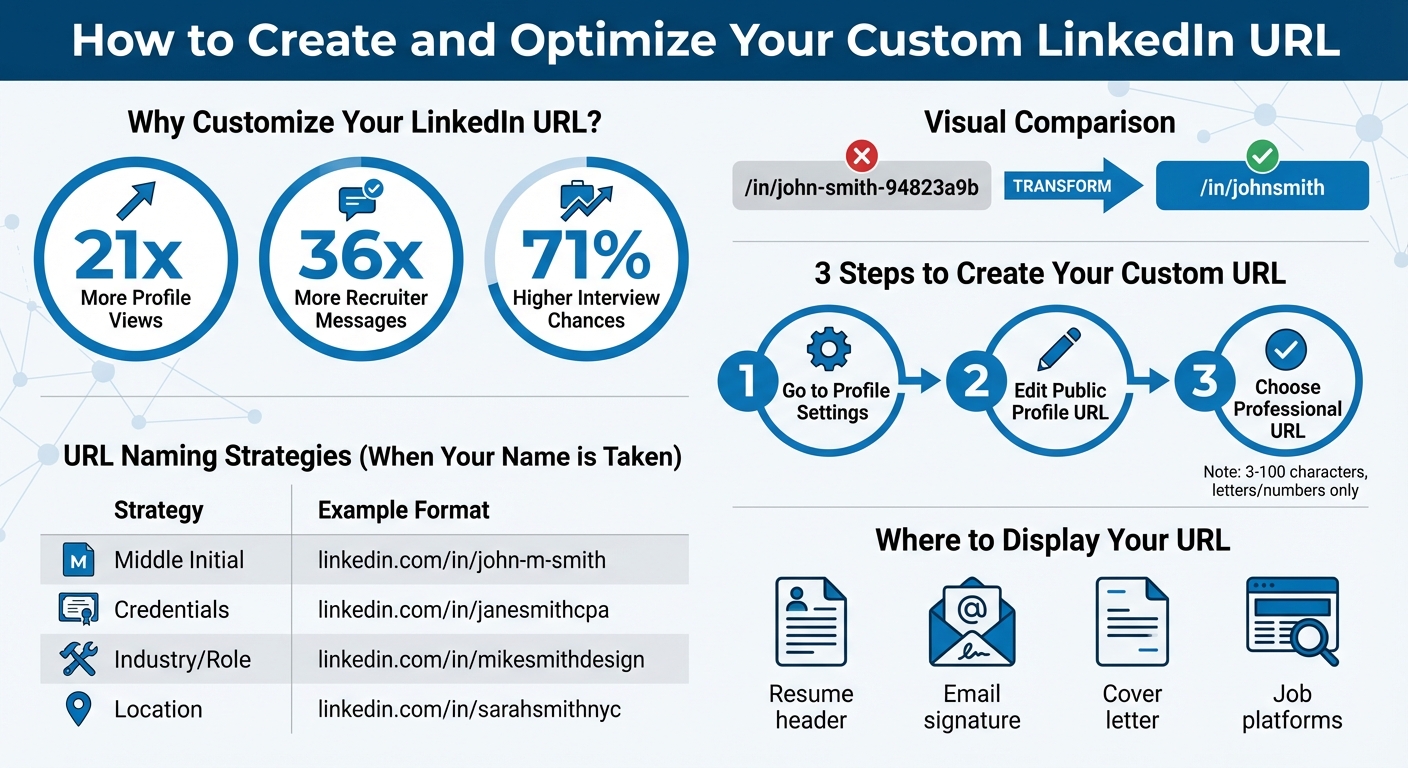
Your LinkedIn URL is your professional digital handshake. By customizing it, you replace LinkedIn's default random characters (e.g., /in/john-smith-94823a9b) with a clean, memorable link like /in/johnsmith. This simple change boosts your LinkedIn profile visibility, makes it easier to share on resumes or emails, and helps recruiters find you faster.
Key benefits of a custom LinkedIn URL:
- 21x more profile views and 36x more recruiter messages.
- Improves search rankings when your name is Googled.
- Increases interview chances by 71% when added to resumes.
To create one:
- Go to your LinkedIn profile settings.
- Edit your public profile URL.
- Choose a name-based, professional URL (e.g., your full name, credentials, or industry).
Avoid using numbers, nicknames, or outdated job titles. Once updated, ensure it's consistent across resumes, email signatures, and job portals. Tools like scale.jobs can help manage your applications and ensure your LinkedIn URL is included everywhere.
A polished LinkedIn URL signals professionalism and helps you stand out in a competitive job market.
How to Create and Optimize Your Custom LinkedIn URL in 3 Steps
How to Find and Customize Your LinkedIn Profile URL (Fast & Easy!)
Once you've updated your URL, you can use free job application tools to further optimize your search.
How to Create a Custom LinkedIn URL
A professional LinkedIn URL can make a big difference when showcasing your personal brand. Luckily, updating your LinkedIn URL is a straightforward process whether you're using a desktop or mobile device. Just keep in mind, you can only change your custom URL up to five times within six months.
Finding Your Public Profile Settings
Here’s how to locate your Public Profile settings:
For Desktop Users:
- Click the Me icon in the top-right corner of your LinkedIn homepage.
- Select View Profile.
- On the right-hand side, find the Public profile & URL section and click the Edit (pencil) icon to access your Public Profile settings.
For Mobile Users:
- Open the LinkedIn app or browser and tap your profile photo.
- View your profile, go to the Contact section, and tap the Edit icon next to your Profile URL.
Editing and Saving Your URL
Once you’re in the Public Profile settings, follow these steps:
- Click or tap the Edit icon next to your current URL.
- Enter your desired custom URL. It must be between 3-100 characters and can only include letters and numbers - no spaces, symbols, special characters, or the word "LinkedIn."
"Your custom URL can be 3-100 characters long and should not contain spaces, symbols, special characters, or the word LinkedIn." – LinkedIn Help
After entering your new URL, click Save. LinkedIn will immediately check if the URL is available. Once secured, you can add it to a tailored resume to ensure recruiters can easily find your profile. If it’s already in use, you’ll need to try a different variation.
When you update your URL, LinkedIn will hold onto your old one for six months unless you unlink it manually. If you choose to unlink, the wait time is reduced to just seven days.
Now that you know how to update your URL, the next step is choosing one that truly reflects your professional identity.
How to Choose a Professional LinkedIn URL
Basic Naming Rules
When creating your LinkedIn URL, keep it simple and professional. The ideal format includes your first and last name, such as linkedin.com/in/johnsmith. This not only makes your profile easier to find but also helps recruiters remember your name.
You can use capital letters to improve readability, but don’t worry - LinkedIn URLs are case-insensitive.
"A custom URL... signals to others that you are detail-oriented and tech-savvy, attributes highly valued in today's digital economy." – Lemlist
If your preferred URL is already taken, don’t worry. There are plenty of professional alternatives to maintain your personal brand.
What to Do When Your Name Is Taken
If someone has already claimed your desired URL, consider these professional tweaks:
- Add a middle initial or full middle name, like linkedin.com/in/john-m-smith or linkedin.com/in/robertalexanderdoe.
- Include your professional credentials, such as linkedin.com/in/janesmithcpa or linkedin.com/in/drjohnsmith.
- Highlight your industry, role, or location to stand out. For instance, linkedin.com/in/johnsmithmarketing, linkedin.com/in/johnsmithhr, or linkedin.com/in/johnsmithnyc.
The key is to keep the URL simple, relevant, and aligned with your personal brand. Ensure consistency across all your professional platforms to create a cohesive online presence.
| Strategy | Example URL Format |
|---|---|
| Middle Initial | linkedin.com/in/john-m-smith |
| Credentials | linkedin.com/in/janesmithcpa |
| Industry/Role | linkedin.com/in/mikesmithdesign |
| Location | linkedin.com/in/sarahsmithnyc |
Before you finalize your LinkedIn URL, take a moment to review common mistakes that could undermine your professional image.
Mistakes to Avoid
- Avoid using birth years or graduation years in your URL. Numbers like "1990" can unintentionally reveal your age, which may lead to bias during the hiring process.
- Skip nicknames, slang, or hobby-related terms. A URL like "catlover89" doesn’t align with a professional brand and could hurt your credibility.
- Don’t include your current employer’s name. If you switch jobs, the URL will quickly become outdated and confusing for potential connections.
- Stay away from random numbers. They make your profile look less polished, as if you stuck with LinkedIn’s default settings.
Keep in mind that LinkedIn allows you to change your URL up to five times within six months, so choose carefully from the beginning. A polished, consistent URL enhances your professional image and strengthens your overall online presence. This is a vital component of broader networking strategies for modern professionals.
Where to Display Your Custom LinkedIn URL
Resumes and Cover Letters
Your resume header is the perfect spot for your custom LinkedIn URL, right alongside your phone number and email. This ensures recruiters notice it immediately. For digital resumes, make sure the URL is clickable - it’s a small detail that can make a big difference.
The same goes for your cover letter. Add your LinkedIn URL to the contact block at the top of the page. This simple addition shows you’re serious about maintaining a professional online presence. Considering that 67% of recruiters say LinkedIn provides the best candidates, making your profile easy to access could be the edge you need to stand out.
Email Signatures and Online Profiles
Your email signature is prime real estate for your LinkedIn URL. Include it as a clickable link or pair it with a LinkedIn icon that directs recipients to your profile. Every email you send becomes an opportunity to highlight your professional brand.
Consistency is key. Use the same custom LinkedIn URL across all your professional platforms - alumni networks, industry forums, personal websites, and job portals. A custom URL featuring your full name can also boost your LinkedIn profile’s ranking in Google searches, making it easier for recruiters to find you. Take this a step further by embedding your LinkedIn URL into all your job search platforms.
Using Job Search Platforms
Displaying your LinkedIn URL consistently across job platforms strengthens your professional image. Platforms like scale.jobs make this process seamless by helping you organize your applications and ensuring your LinkedIn URL appears on every submission.
Here’s what scale.jobs offers:
- Free Job Applications Tracker that automatically includes your custom LinkedIn URL
- ATS-Compliant Resume Builder to keep your profile details consistent
- AI Assistant Pro for one-click tailored resumes and cover letters
- Human Assistant Service with real-time WhatsApp updates and proof-of-work screenshots
For just $9/month, the AI Assistant Pro feature can create perfectly formatted resumes with your LinkedIn URL included in seconds. And if you’re looking to save time, the Human Assistant service manages your entire application process, ensuring your LinkedIn URL is placed correctly on every document they submit for you. It’s a smart way to enhance your professional presence while simplifying your job search.
Maintaining Your Custom LinkedIn URL
When and How to Update Your URL
Did you know you can change your custom LinkedIn URL up to five times within six months? But after that fifth change, you’ll have to wait another six months before making any further edits.
It’s best to update your URL only when necessary - like after a legal name change or if it no longer aligns with your career focus. For example, if your current URL is /in/janesmith-marketing but you’ve shifted to a career in finance, keeping "marketing" in your URL could send mixed signals to recruiters.
"Stick to changing it only if there's a change in your name or job title. If you do change it, you'll need to update the links on all the documents where you've shared it." - ProofreadingServices.com
What happens when you change your URL? LinkedIn keeps your previous URL reserved for six months to reduce the risk of broken links. However, if you manually unlink it, the old URL becomes available again after just seven days.
Fixing Broken Links and Visibility Issues
Whenever you change your LinkedIn URL, it’s crucial to update all references to it - on resumes, email signatures, business cards, and social profiles. Failing to do so can result in "Profile Not Found" errors when recruiters or connections try to visit your profile.
To address visibility issues, head to Settings & Privacy > Visibility > Edit your public profile. Make sure the "Your profile's public visibility" toggle is switched on. Use the Preview feature to see how your profile appears to people outside your network or those not logged into LinkedIn.
If you’re juggling multiple job applications, keeping your LinkedIn URL consistent across all documents is key. Tools like scale.jobs can simplify this process. Their Human Assistant service handles your application submissions, ensuring your LinkedIn URL is accurately included on every document. Plus, they provide real-time updates via WhatsApp and time-stamped proof-of-work screenshots, so you’ll always know where your profile link has been shared.
Regular Profile Reviews
Keeping your LinkedIn URL polished and professional is an ongoing task. Make it a habit to review your URL whenever you update your resume or email signature. A clean and consistent URL reinforces your personal brand and ensures it aligns with your current career goals.
Also, check for broken links regularly. Test the LinkedIn links in your email signature or resume to ensure they’re working properly. If you’ve recently changed your URL and run into issues, LinkedIn allows you to revert to a previous URL immediately - provided it hasn’t been unlinked yet. This can save you from confusion and ensure your application materials remain intact.
Conclusion
Creating a custom LinkedIn URL isn’t just about aesthetics - it’s a smart move that shows professionalism to U.S. recruiters and can even improve your profile's visibility in Google searches. In a competitive job market, small details like a clean URL, such as /in/yourfullname, can make a big difference. It replaces the default jumble of numbers and letters, making your profile easier to remember and share, while also reinforcing your personal brand across platforms.
To get started, head to your public profile settings, update your URL to reflect your name (you can include a middle initial or professional designation if needed), and save the changes. Afterward, make sure to update any resumes with real-life examples or platforms where you’ve shared your LinkedIn link. Broken links could mean missed opportunities if recruiters can’t access your profile.
Once your URL is customized, keeping it consistent is key. Test your links periodically, ensure your profile visibility settings allow it to remain public and searchable, and align your profile with your current career goals. If the process feels overwhelming, you can partner with a virtual assistant to manage these technical updates. For seamless integration across application materials, services like scale.jobs offer ATS-optimized documents and real-time updates to keep your job search on track.
Think of your LinkedIn profile as your digital handshake - a custom URL ensures that handshake is strong and memorable. It’s a simple yet effective way to enhance your professional branding and job search efforts.
FAQs
Why should I create a custom LinkedIn URL for my job search?
Creating a personalized LinkedIn URL makes your profile simpler to locate, share, and recall. It shows that you pay attention to details and are comfortable with technology, while also enhancing your profile's presence on search engines. This small adjustment can make it easier for recruiters to find you, potentially increasing profile views and improving your chances of securing interviews. It's a minor change that can have a meaningful impact on your job search.
What can I do if the LinkedIn URL I want is already taken?
If the LinkedIn URL you want is already taken, you can tweak it by adding a variation. For example, try including your middle initial, a hyphen, or even a number. To make changes, head to Me → View Profile → Edit Public Profile & URL, and then click Edit next to your current URL. Experiment with different options until you land on something that’s both available and professional.
How many times can I change my LinkedIn URL, and are there any restrictions?
You can tweak your custom LinkedIn URL up to five times in six months. Remember, you’re allowed only one custom URL at a time, and it needs to be between 3 and 100 characters. You can use letters, numbers, or hyphens, and the URL isn’t case-sensitive.
Frequent changes to your URL might confuse your connections, as old URLs are only redirected for a short time. To avoid any hassle, aim for a professional and easy-to-remember URL - and stick with it.